OpenAI has everyone confused with its new ChatGPT: Chat, Work, and Codex are now all in one app

OpenAI carried out one of the strangest rebrandings of the year.
The app that was previously known as Codex is now becoming ChatGPT's main working app. Meanwhile, the old, familiar ChatGPT is becoming a separate mode—or "old version"—that will increasingly be referred to as ChatGPT Classic.
At first glance, this looks like a simple renaming.
But in reality, OpenAI isn't just building a chatbot—it's creating a fully functional super app that combines three different ways of working within a single interface:
▸ Chat
▸ ChatGPT Work
▸ Codex
And this is where things really get interesting.
1. Chat — the standard mode for quick tasks
Chat is the ChatGPT you're familiar with.
It makes sense to go here when you need to:
▸ ask a question
▸ write a text
▸ come up with ideas
▸ explore a topic
▸ explain something quickly
▸ jot down a draft of a post or article
The main advantage of this mode is that it remains the simplest and fastest.
No need to attach files, run an agent, or worry about the runtime context. I just wrote a query and got a response.
But there's one important detail:
You can turn regular chats into tasks for Codex or ChatGPT Work.
In other words, you can start by discussing the idea in a casual chat, and then move it into a more serious working environment.
This is convenient because Chat is no longer a standalone product, but rather an entry point into the workflow.
2. ChatGPT Work — a new layer between the chat and Codex

In my opinion, this is the most important part of the update.
ChatGPT Work isn't just another communication mode.
This is a tool for work tasks that don't necessarily require writing code.
You need it when you have scattered information, documents, spreadsheets, notes, correspondence, files, and data exports, and you want to turn all of that into a finished product.
For example:
▸ Upload a CSV file with analytics and generate insights
▸ Put together a presentation from documents
▸ Create a PDF report
▸ Create a table with insights
▸ Build a dashboard
▸ Turn the chaos in Notion, Slack, Google Drive, or Microsoft 365 into a coherent structure
If Chat is about “talking and thinking,” then Work is about “delivering results.”
And that's a very strong move.
Because there used to be a huge gap between the regular ChatGPT and Codex.
ChatGPT was a great help with thinking and writing.
Codex worked well with the code.
But for tasks like “put together a presentation for me using these documents” or “analyze the data dump and create a report,” there wasn’t such a clear middle ground.
Now he's here.
3. Codex — Developer Mode

Codex remains the most technical mode.
Its purpose is to work with code, files, projects, and repositories.
This is a good place to go when you need to:
▸ review the codebase
▸ find a bug
▸ write a new feature
▸ fix the project
▸ refactor the code
▸ build a website, app, or automation
Unlike regular chat, Codex doesn't just work with text in a conversation.
He can view the project files, understand their structure, make changes, and check the results.
In other words, this is no longer just a “model offering advice,” but a fully-fledged working agent.
And here's an important point:
If you're working with a large codebase, it's best to communicate with the Codex in English.
Russian is easier for thinking and writing posts, but English often saves tokens and makes code comments shorter.
And when it comes to large projects, that really makes a difference.
The main thing to keep in mind: Work and Codex can both use up the same limit
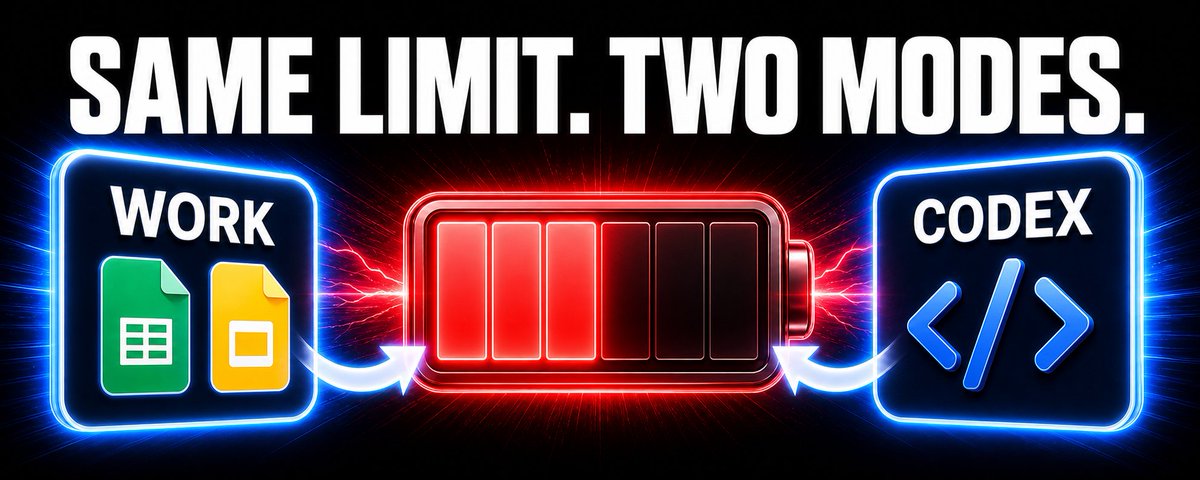
This is where a lot of people might get tripped up.
ChatGPT Work and Codex appear to be different modes, but in terms of how they’re used, they’re more akin to agent-based tasks.
If you run a resource-intensive analysis in Work, it might use up the same resources you need for Codex.
For example:
You asked Work to analyze a large spreadsheet, put together a presentation, and prepare a PDF.
And then you want to go to Codex and finish writing the feature.
And suddenly it turns out that the limits have already been breached.
Therefore, it’s best not to think of Work as a “free standalone mode.”
It's more like a second way to use that same powerful agency resource.
Second point: Synchronization is still a bit off

Another point is synchronization between the app and the web version.
Regular chats sync as usual.
However, projects and tasks in Work / Codex may behave differently.
What you create in the app won't always look the same right away in the web version.
This might seem strange to the average user:
The problem is present in one place but not in another.
Therefore, for now, it’s best to treat the new app as a separate working environment rather than a completely seamless replacement for everything.
Third point: ChatGPT Work isn't available to everyone
ChatGPT Work is being rolled out gradually.
At first glance, it doesn't look like a feature that all free accounts get right away.
Most likely, OpenAI will gradually expand access, as they often do with new products.
But it's already clear where things are headed.
OpenAI no longer wants ChatGPT to be just a “chat window.”
They turn it into a fully functional operating system:
▸ Chat — for ideas and quick tasks
▸ Work — for documents, data, and artifacts
▸ Codex — for development and code
Conclusion

OpenAI released a very powerful but confusing update.
On the one hand, we now have a single workspace where we can write, analyze, create documents, and code.
On the other hand, the names, modes, limits, and synchronization aren't entirely clear yet.
But the general direction is clear:
ChatGPT is no longer just a chat bot.
It’s gradually becoming a place where you can put together the entire final product — from an idea to a document, presentation, website, or code.
And while the main question used to be “which model should I choose?”, now the question is different:
What setting should I use to avoid exceeding the limits and get results faster?
Related articles

How to Build a Self-Improving Outbound System on Codex
Earlier this year, Andrej Karpathy (@karpathy) pointed an agent at his own training code and let it run for two days. It ran 700 experiments, kept the 20 that beat the benchmark, and made the model t…

The New $10,000 AI Product Is Not an App. It’s a Workflow Claude Can Run
Most people building with AI are still trying to make another app. They take a model everyone can already access, place it behind a cleaner interface, add billing, authentication and a dashboard, the…
I replaced $1000+/year in subscriptions with these 50 free GitHub tools
Every month, you pay for software that you could be running for free