How I get 98% US TikTok audience for only $7/month (no NordVPN, no shadowbans)

Introduction
Many people who are interested in showing their content to a US audience on TikTok have, at least once, thought about or even tried setting up a US TikTok account using a VPN.
This guide answers how to do it step by step, with almost zero investment, and explains what you can realistically expect.
Unlike other guides, the method I describe here does not require a residential proxy, and costs only $7 a month.
Who is this guide for?
If you're an app founder trying to market your app on TikTok, this guide is for you.
Just like you, I’ve spent a lot of time deep-diving into US VPN setups to market my own app. And while I haven’t fully cracked converting views into actual sales yet, getting tens of thousands of views and likes from my target audience is something I’ve been doing consistently now.
This is not a guide on how to get paid users.
But it will answer how to get your content shown to a US audience enough to experiment, test different formats, and eventually generate leads for whatever business you’re building.
Does it really work?
In the past month, I’ve been posting my US TikTok results here on X.
At first, nothing extraordinary happened. My first post got over 6,000 views in the first few days. The posts I made shortly after that were getting around 400-5,000 views.
And don’t get me wrong, those aren’t bad numbers. Many AI UGC people on X, as well as people writing about their US VPN setups similar to this guide, actually describe 1,000-3,000 views as pretty good results.
But I always took that with a grain of salt, because those numbers simply aren’t enough to determine whether your content strategy is actually working.
For some time, I was concerned that my setup might not be as strong as setups using residential proxies.
That was until my recent posts started shooting up to over 30k, 60k, and even 80k views.
After that, I’m convinced the setup is healthy. If your content is good, there is practically no difference between posting from a device physically located in the US and posting from a used iPhone 8 somewhere in Southeast Asia or Europe, while paying only around $7/month for a US IP.
Process Overview
In short, you'll need a cheap used iPhone (best if iPhone 8 or above), rent a US VPS, turn it into a self-hosted VPN server, and prepare your phone / TikTok account.
A more detailed map looks somewhat like this:
Get a used iPhone.
Get a Hetzner US VPS.
Set up Outline VPN on your Hetzner VPS (a self-hosted VPN)
Prepare the phone + connect to your VPN.
Create a TikTok account.
Warm up the account.
Get views.
Setup Process
- Get a phone
To begin, you’ll need a cheap dedicated phone.
To save your time: a cheap iPhone 8 is perfectly fine, but XR / XS is even better.


Now, more details.
TikTok uses a large amount of trust signals to determine whether a device looks like a real local user. This includes things like IP, timezone, region, SIM/carrier info, language settings, device metadata, App Store region, and behavioral patterns.
Based on many Reddit and X discussions, older iPhones like the 8/X/XR are currently considered the sweet spot: modern enough to look like normal real-user devices, but still cheap and widely used for US-targeting setups.
The reason iPhones are preferred is not just “because iOS is better.” The actual reason is that iPhones are much harder to spoof, modify, emulate, or automate at the system level. Apple’s ecosystem is heavily locked down, so device metadata tends to look more consistent and trustworthy.
Android devices expose significantly more system-level information through Google services and manufacturer-specific layers. Their metadata is also easier to modify, emulate, root, automate, or run in large phone farms. Because of that, Android devices are generally considered lower-trust in VPN/proxy-based setups.
Newer iPhones are preferred because they expose a more modern and normal device profile. Very old devices can become uncommon among real users, run outdated iOS versions, have older network stacks, older security layers, and less realistic usage fingerprints. An iPhone 8/X/XR still looks like a believable active-user device in 2026, while something much older may start looking abnormal or low-trust over time.
- Get a US VPS (Hetzner)
This is how you get the US IP.
Why Hetzner?
Hetzner is the VPS provider I used myself. The setup is simple, and the price is cheap, around $7/month.
You can experiment with other providers too, but I can’t recommend for or against them because I haven’t tested them myself.
Why not a residential proxy?
Many people recommend residential proxies, and they may work well. But based on my own results, they are not required. A clean US VPS setup was enough for me to consistently reach a US audience.
Create the VPS on Hetzner Cloud:
- Register the account
(https://www.hetzner.com -> Login -> Console -> Register Now)
Hetzner may require uploading your documents for identity verification.
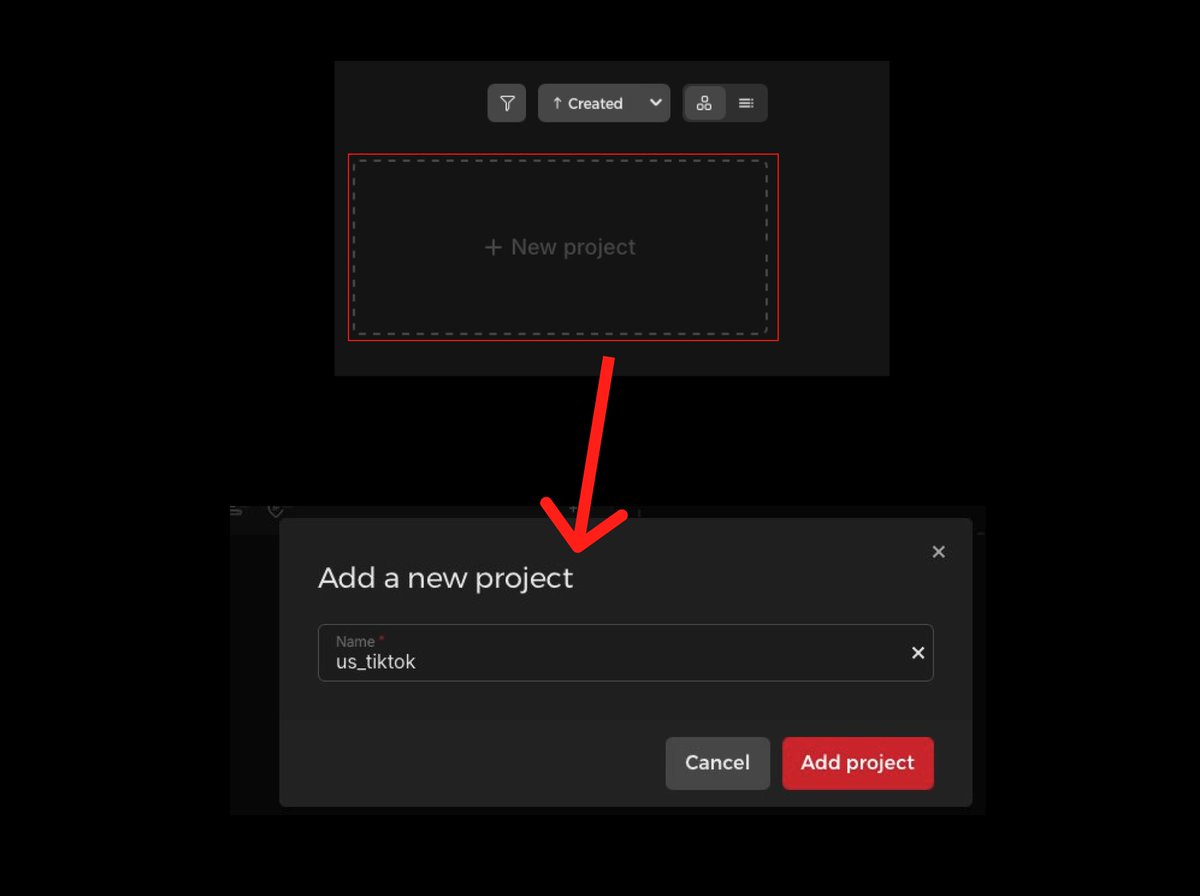
- Create a new project:
-
Click “New project”
-
Enter the project Name (e.g., "us_tiktok")
-
Click "Add project"
- Create a new Server:
-
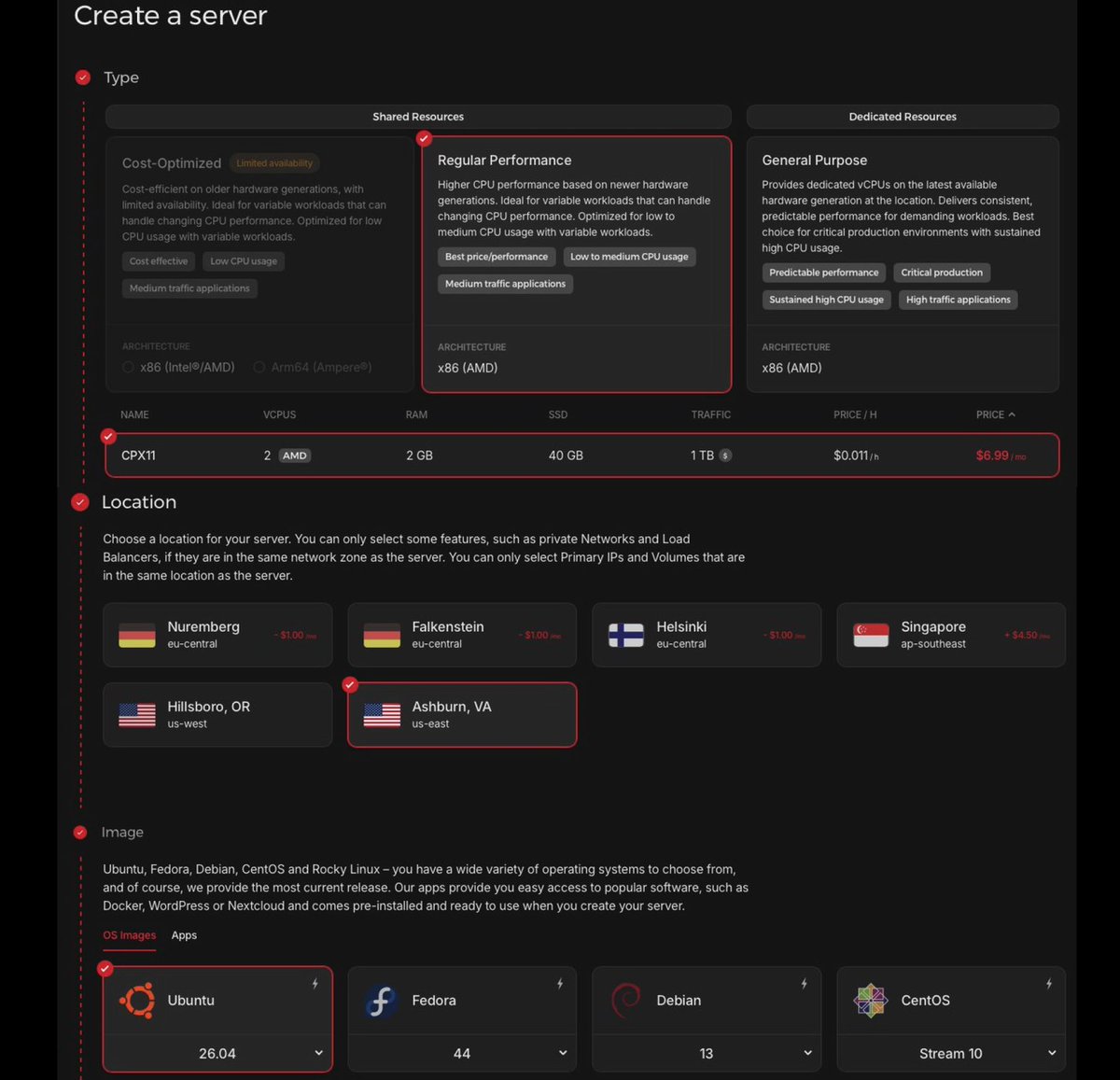
Click "Create Server"
-
Select "Regular Performance" under "Shared Resources"
-
Select "CPX11 $6.99/mo"
-
Location: Ashburn, VA (US East)
-
Image: Ubuntu 24.04
-
IPv4: enabled
-
IPv6: optional (Free)
-
SSH key: optional (more secure but adds complexity)
(!) Hetzner will send you the server's Root password to your email.
- Skip the sections "Volumes", "Firewalls", "Backups", "Placement Groups", "Labels", and "Cloud Config"


Change the server name to something clearer, e.g., "tiktok-us-vpn".
Click “Create & Buy Now”
Copy your server's Public IP
(!) If you did not receive the Server Password email from Hetzner:
-
Click on the server
-
Go to the "Rescue" tab
-
Click "Reset Root Password"
-
Confirm
-
Your new Password will be displayed -> copy it and store securely
- Install Outline Manager on your Mac and connect it to your VPS
Outline is what turns your VPS into a private VPN server.
You can use an Outline alternative, but I have not tested any of them, so I cannot recommend a replacement.
- Install Outline Manager on your computer
https://getoutline.org/get-started/
(click "Get Outline Manager" -> Download)
- Connect to your VPS from your computer using a terminal command
Use the command below (paste your actual VPS IP obtained from Hetzner)
It will ask for confirmation -> type "yes"
Enter your VPS Root Password.
If successful, your terminal line will start with "root@your server name", meaning you can now execute commands on your VPS.
Keep this terminal window open - you will need it in the next step.
- Set up Outline on your Server:
In Outline Manager on your computer:
- Click "SET UP" under "Set up Outline anywhere"
- Outline will show you 2 boxes:
- Copy the command from box 1
(installation command to get Outline on your VPS)
-
Paste the command into your terminal window and hit enter
-
It will also automatically install Docker
-
Once installation is complete, you’ll see a green output line starting with {"apiUrl"...} → copy it.
-
Paste that output into the Box 2 in Outline Manager and click "DONE"
-
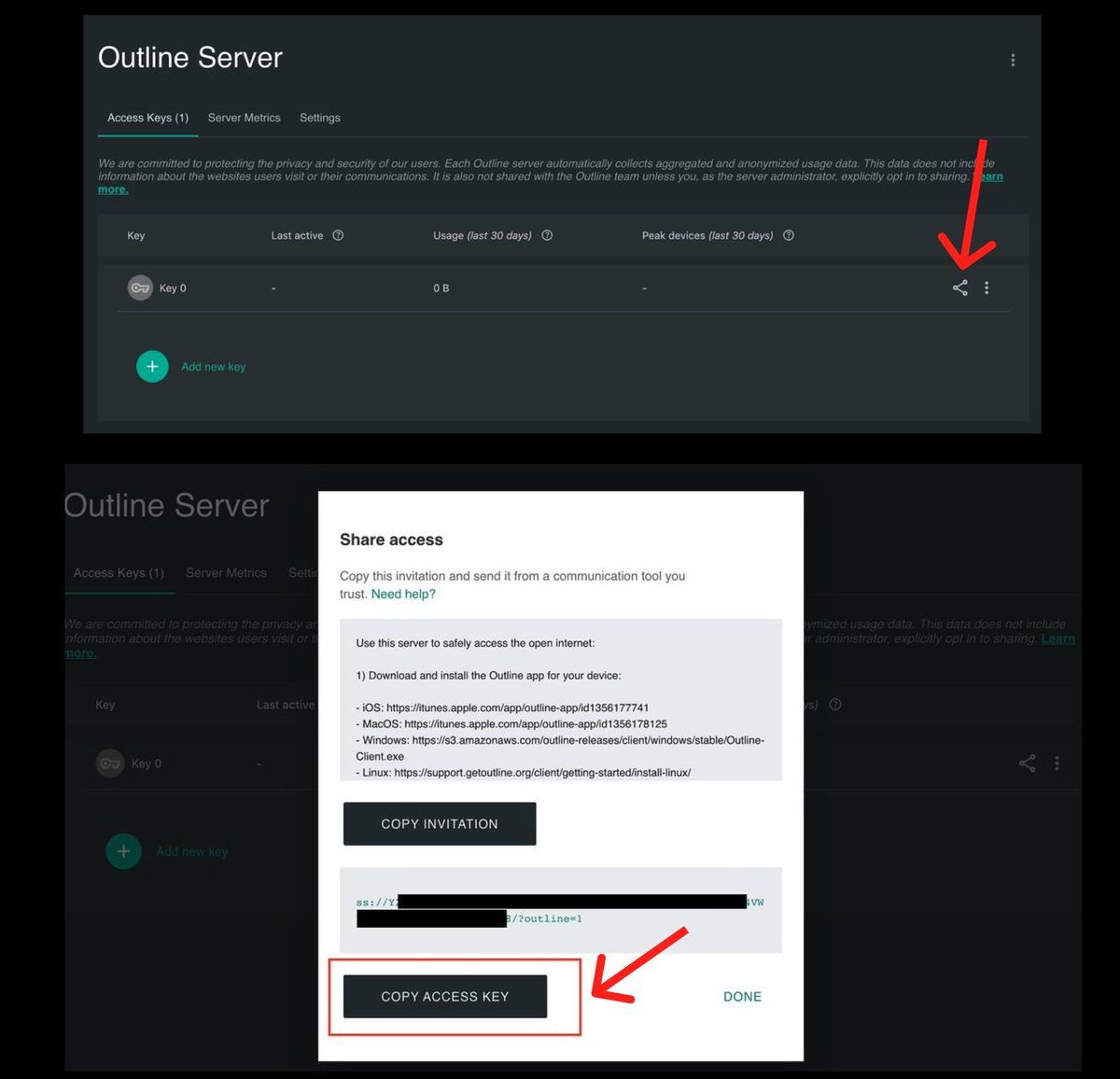
Copy and save the Access Key


You will need this to connect your phone to VPN
-
In Outline, click the Share icon next to "Key 0"
-
Click "COPY ACCESS KEY"
-
Save the Access Key in Notes
-
Click "DONE"
At this point you've successfully:
✔️ Set up a US VPS
✔️ Downloaded a VPN manager on your computer
✔️ SSH’d into your VPS
✔️ Turned your VPS into a VPN server
Now, to the phone setup part.
- Prepare your phone and connect it to VPN
The setup process might look complicated at first, until you realize there are just a few essential steps:
-
No SIM in the phone
-
Factory Reset the phone
-
Connect to WiFi
-
Log in with a temporary Apple ID
-
Download the Outline client app
-
Log out of your temporary Apple ID
-
Connect to VPN
-
Create a new Apple ID while connected to VPN
Now to the process:
- Take out a SIM card, if any
Throughout the entire process, it is critical that the iPhone has no SIM inserted, so that no local carrier information is stored in the system
(TikTok can detect this)
- Factory reset the iPhone
-
Go to Settings -> General -> Transfer or Reset iPhone -> Erase All Content and Settings
-
Wait for it to complete
- Set up the phone after a Factory Reset:
-
Start from the "Hello" screen
-
Language: English (US)
-
Region: United States



-
Time Zone: manual, US (I chose Cupertino)
-
Location Services: OFF
-
Connect to your normal WiFi with no VPN
You have to do this because Apple won't let you finish the setup with no internet
-
Log into your primary Apple ID, or better, create a new one.
During the setup, you can skip the Apple ID step, but Apple still requires any Apple ID on device to install apps from App Store.
Critical:
-
DO NOT download TikTok under this Apple ID.
-
You may use your real primary Apple ID (as I did), or create a new one. Either way, it is needed only to download the Outline VPN.
-
If you choose real primary Apple ID, DO NOT restore the phone from iCloud. Start fresh.
-
You only log in temporarily, download the Outline VPN, then immediately log out of Apple ID, connect to VPN, and create a new (another) Apple ID with VPN connected.
-
Download Outline VPN from App Store (Outline App)
-
(!) Once downloaded, immediately log out of the temporary Apple ID
-
After logging out, connect to VPN:
-
Open Outline App
-
Click "Add server"
-
Paste the Access Key
(The key you received in Outline Manager app on your computer)
-
Click Confirm
-
Click the large circle in the middle of the screen
-
Verify it shows "Connected" and "VPN" shows up in the Status Bar
-
Search "Check my IP" in Google, make sure your location is US
-
Create a new Apple ID with VPN connected and download TikTok
-
(!) MAKE SURE VPN STAYS ENABLED
Once Outline shows “Connected,” it usually stays connected, but always double-check before opening TikTok.
- Create the clean US Apple ID under VPN
-
App Store or Settings → create new Apple ID
-
Country/region: United States
-
Use a normal US-style name (e.g., "Palm Beach Adam")
-
Use a US address that Apple accepts
-
DO NOT enter card details. The address is enough for downloading free apps.
-
For a US phone number, use an SMS service like SMS Pool ($0.12, one time)



- Download TikTok and create a new account
-
Download TikTok
-
Create a brand-new TikTok account
-
For a US phone number, you can use SMS Pool or an alternative
(!) Critical:
-
DO NOT log into this TikTok account from any other device with non-US IP
-
If you have any other TikTok accounts, do not log into them from this US VPN device we just set up.
-
Other people report managing 2 accounts on a single device with no issues, but until you make sure your account is warmed up and is getting views, better not risk it.
- Warm Up the Account (5-7 days)
As for warming up - the rules are quite simple:
-
Warm up for 5-7 days (three days is the absolute minimum but not ideal)
-
Scroll 30-60 minutes per day
-
Watch, like, and save only US content in English. Do not engage with content in other languages.
-
Watch and engage with content in your niche or made by your target audience. This is the best way to teach the algorithm what content to show you, and who to show your future content to
-
Like / comment normally (for example, like 1 out of 5 posts)
-
Do not post during this time
Conclusion and what to post
If you’ve taken all the steps as described, then after a few days of warming up your account, your first post will likely get a few thousand views.
In my own example, it was 6.2k.
I did have a few shadowbans (I’ll make a separate article on that)
But after less than 30 days of posting, total likes on this account went up to 10k. Then, in another four or five days, they skyrocketed to 75k.
10k, 20k, 30k, 40k, 60k, and even 80k views on my posts.
Posting on TikTok is definitely a patience game.
But if you have the right tools to make your content, and you constantly improve, you’ll get the results.
As for this setup, yes, it’s a datacenter IP.
However, as you can see, your behavior, whether any other non-US IP is associated with your account, and the content you make matter more.
If you found this guide useful, save and repost it.
Also, if you’re looking for an AI tool to make content for your TikTok, you can always check out my products. I used the tool I built myself, and that’s how I went from 600 views to 80k views on a single post, with around a 20-25% engagement rate, which is an insane number, in around 30 days.
Cheers, and may the algorithm be on your side!


Prompts
ssh root@YOUR_VPS_IP
Links
Related articles

10 UGC Hooks That Always Work (App Marketing)
your app doesn't need 100 new content ideas.

how to speedrun your consumer app to $1M+ with organic UGC
i've added $8,500,000+ ARR added to client topline revenue through end-to-end organic UGC marketing.

The ULTIMATE Organic Marketing Guide For App Founders
I’m going into calorie deficit, fat loss, high protein meals, gym meals, restaurant calories, what I eat in a day, meal prep, macro tracking, cutting, bulking, low calorie snacks and whatever else st…