How to Actually Use Grok Bot: 18 steps from first install to a team that runs without you

Grok Bot gives every person one Linux machine in the cloud, running 24/7, with a browser, a file system and a terminal on it.
Most people who got access are using it like a chat window. They type, they read, they close the app. The part that makes it different, where it signs into your real tools and finishes real work while you sleep, stays switched off.
Not because it is complicated. Because nobody laid out the order.
This guide fixes that. By the end you will have a bot that owns a job, knows where to stop, runs on a schedule, and survives a machine rebuild.
I'm going to walk you through exactly how it works, step by step.
Part 1: Install and Sign In
You need one of three plans: SuperGrok Heavy at $300/month, Cursor Ultra at $200/month, or Cursor Teams Premium at $120/seat.
Already on Ultra or Heavy? Grok Bot is included.
Download the desktop app for macOS or Windows from x.ai/bot. iPhone works too, iOS 18 or later.
One thing stops people cold before anything starts: Legacy Privacy Mode blocks Grok Bot completely. The product requires cloud data storage. If your account or your team sits on that mode, nothing launches until it changes in Cursor settings.
Sign in with your Cursor account. On first launch the app builds your machine in the background, which takes a few minutes.
Part 2: Create One Bot, Not Fifteen
The instinct is to build a roster on day one. Do the opposite.
A job deserves its own bot only when it has all five of these:
A goal nobody else owns · its own tools and sources · a working style different from the rest · an approval boundary you can name · a schedule it repeats on.
Talent Scout passes. Expense Manager passes. General Helper fails all five, which is why a vague bot gets worse over time instead of better.
Press Cmd/Ctrl+N, choose Create new agent, then open Bot actions → Edit Profile to set its name, title and description.
Here are the eight roles that ship as official examples. Pick the one closest to your week and paste its opening job straight into the chat:
Sales Outbound
Research the 25 accounts in this CRM view. Score them against our ideal
customer profile and recent intent, identify up to three relevant contacts
per account, and draft email and LinkedIn outreach in the style examples
attached. Skip anyone already in an active sequence. Return a review list;
do not send or enroll anyone.
Talent Scout
For this role description, find 20 potential candidates who meet the
must-have criteria. Exclude anyone already in our ATS, explain the evidence
for each match, and draft personalized outreach in my voice.
Do not contact anyone.
Paid Media
Pull current spend and performance by campaign. Compare it with the monthly
budget and target CAC, then recommend reallocations with the supporting
numbers. Draft a Slack update for the growth team. Do not change budgets or
send the message.
Expense Manager
Build this week's expense summary from the expense system and attached
policy. Match receipts from the finance inbox, flag missing categories or
policy exceptions, and draft one follow-up per owner. Return the summary and
drafts; do not send messages or change reimbursements.
Product Performance
Investigate the checkout latency increase since yesterday's release. Review
dashboards, traces and flamegraphs, identify the highest-confidence hotspot,
and return a short write-up with screenshots and direct links. Separate facts
from hypotheses. Do not change alerts or production settings.
Bug Reproduction
Read this bug report and reproduce it in staging using a fresh test account.
Return exact steps, expected and actual behavior, screenshots, browser and OS
details, relevant console or network notes, and a minimal test case if
possible. Do not use production customer data.
Account Health
Review the accounts in this portfolio. Combine recent usage, support
escalations, renewal timing and stakeholder activity into a ranked watch
list. For each account include the evidence, why it matters, and a suggested
next step. Do not contact customers or edit the CRM.
Chief of Staff
Review activity since yesterday across my approved channels, inbox, calendar
and meeting notes. Return only items that map to the priorities in this
document. For each item include the source, why it matters, the proposed next
step, and whether I owe a decision. Do not send messages or change meetings.
Every one of them ends on a limit. Not one asks for more autonomy.
Part 3: Put the Rules in the Description, the Work in the Message
This single split decides whether your setup holds up in week three.
The description holds what stays true after you forget writing it:
Never send external messages without approval.
The message holds today's job:
Draft follow-ups for these twelve accounts.
Put today's work in the description and the bot keeps doing last week's job forever.
Put the rules in the message and you retype them every single morning.
Update the description the moment you find a durable preference, a boundary, or a responsibility that should shape everything the bot does from now on.

Part 4: Write the Request in Five Fields
A request that works answers five things. Miss one and the bot either guesses or stops to ask.
Outcome: what has to be finished Sources: which apps, sites, files or conversations matter Constraints: what to avoid, what to ask about first Deliverable: what it hands back, in what shape Review point: where it stops and waits for you
Here is the shape, ready to adapt:
Outcome: a ranked watch list of accounts at risk this quarter.
Sources: the CRM view I linked, product usage in the warehouse, and the
support inbox.
Constraints: read-only everywhere. Do not contact anyone. Ask me before
opening any account I have not shared.
Deliverable: one spreadsheet with columns for account, risk score, evidence
and suggested next step, plus a five-line summary in this chat.
Review point: stop after the spreadsheet and wait for me.
Part 5: Verify the First Result in Thirty Seconds
Start with a job you can check instantly. No connector, no login:
Summarize this document in five bullets. List every date, decision and open
question in a separate section. Cite the page or section for each item.
Do not change the source file.
You are calibrating trust, not testing capability.
When the output is wrong, correct the process rather than the file. Name the lasting preference out loud:
Use this format for future weekly reports: five bullets, source links inline,
and a final section called "Decisions needed".
Part 6: Hand Over the Login, Never the Password
The bot drives a browser on its own machine. It runs until it hits a wall, then hands you the screen.
Five moments always need you: a password or passkey · a two-factor code · a CAPTCHA · a payment or identity check · a site that explicitly requires a human.
Open Agent Computer from the conversation, take control, complete only the blocked step, hand control back, and tell the bot to continue from the current page.
Never paste a password or a one-time code into chat. When a connection offers a secure secret request, use that instead: the value is masked, kept out of the transcript, and never shown to the model.
Browser sessions persist. Sign in once and that site usually stays signed in for every bot you own.

Part 7: Connect Your Tools Once
Connectors show up as Plugins. Open Settings → Plugins, browse, press Add, finish authentication in the browser.
Then @ attaches a connector to a task and / calls a saved skill.
Two facts change how you set this up.
Installed connectors are account-wide, so the fifth bot you create is productive in seconds.
The blast radius of any connection is every bot you will ever create, which is a reason to connect what you need and leave the rest alone.
A connector beats the browser wherever one exists. It is more reliable than clicking through a website, and it costs far less to run.
Part 8: Bridge Whatever Has No Connector
The native catalog does not cover everything. When the tool you need is missing, install Composio and reach hundreds of services through one bridge.
Then store that fact where the whole roster can read it:
Add to shared knowledge: YouTube, Reddit, LinkedIn and Perplexity are
reachable through the Composio plugin, not natively. Use Composio for those
four and never try the browser first.
Without that line, every new bot rediscovers the same gap and burns usage doing it.
Part 9: Draw the Approval Line by Reversibility
The rule that works is not task size. It is whether the action can be undone.
Anything reversible the bot finishes alone: draft, file, tag, summarize, research, prepare, reconcile, compare, organize.
Anything the outside world sees, anything that moves money, anything you cannot take back gets parked: send, publish, purchase, delete, contact someone, change permissions, accept terms, touch production.
Preparing a red action is allowed. Executing it is not.
Paste this into every bot description you create:
Finish anything reversible without asking: research, drafting, filing,
tagging, summarizing, reconciling. Stop and ask before anything that leaves
this account: sending, publishing, purchasing, deleting, contacting people,
changing permissions, accepting terms, or touching production. If you cannot
undo it in under a minute, park it and ask.
Part 10: Set Auto Review Rules
Descriptions are guidance. Auto Review is enforcement.
Open Settings → General → Auto-review. Two kinds of rule exist:
Require Approval always stops a matching action. Always Allow lets one through, but only when the automated review finds no other reason to stop.
When both match, Require Approval wins.
Write narrow rules around a known action and a known scope:
Require approval before sending any external email.
Require approval before changing a production dashboard.
Always allow running git status in /workspace/reports.
Avoid anything shaped like
allow everything in the browser.
Sites and tools change under you, and a broad rule ages badly.
One catch worth knowing: these rules live on the current desktop and sync to its machine. A second desktop installation does not have them.

Part 11: Lock Down Your Own Laptop
The cloud machine is not your laptop. Access to the computer in front of you is a separate capability with its own setting.
Open Settings → General → Agent → Execution on Local Computer and pick one:
Always require approval · Always allowed · Never allowed
The default is ask every time. Set it to Never allowed unless a bot has a specific reason to touch your local files.
Every local action still passes through Auto Review, and the approval card shows the exact command before it runs.
Part 12: Teach a Task by Showing It
Some workflows take twenty minutes to describe and forty seconds to demonstrate.
Open a one-to-one conversation and its computer view, choose Teach a task, describe the result you are about to show, do the workflow once, then stop and review.
Three details change how you use it.
The recording runs up to 10 minutes.
It captures no microphone audio.
The result is a draft, because one demonstration cannot show what happens when a source goes missing or a price needs approval.
Pick your first recording carefully. The best candidate is something you do at least weekly, that touches two or more tools, and where the steps rarely change.
Part 13: Save the Process as a Skill
A skill is the method. Save it the moment a run comes out right:
Save the process we just used as a skill called "Weekly account health".
Include the source systems, the risk definitions, the output format, and the
rule that customer contact always requires approval.
A skill that survives contact with a real week states six things: when to use it, what inputs and access it needs, the sequence, how to validate the result, what to return, and what requires approval.
Skills are available across your bots. Private ones are enabled per bot, which is why a skill you installed sometimes does not appear in the / menu. It is sitting in Settings → Plugins → Yours, waiting to be switched on for that bot.
Part 14: Turn the Skill Into a Routine
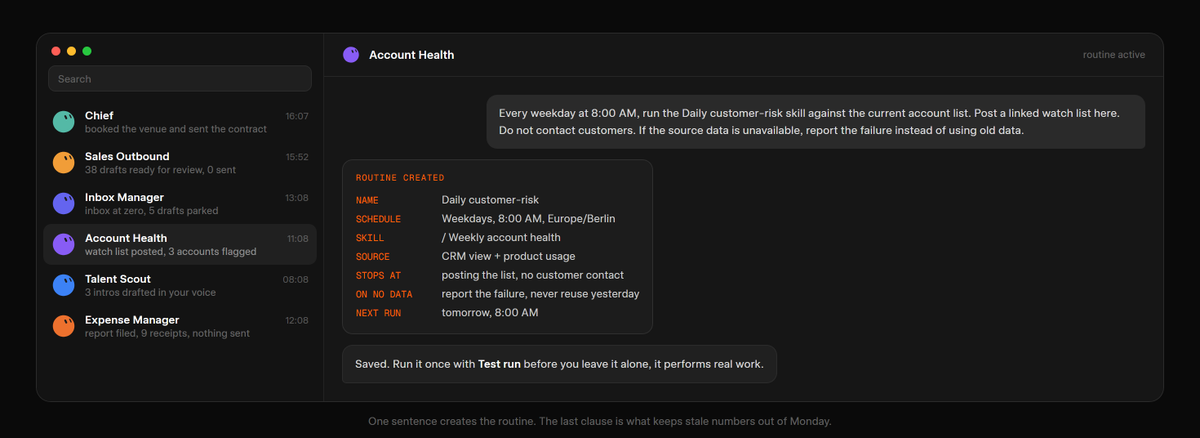
A skill is how. A routine is when.
Ask the bot that should own the job:
Every weekday at 8:00 AM, run the Daily customer-risk skill against the
current account list. Post a linked watch list in this conversation. Do not
contact customers. If the source data is unavailable, report the failure
instead of using old data.
That last clause keeps yesterday's numbers out of Monday. Put it in every routine you write.
Before you save it, confirm the owning bot, the schedule and its time zone, where the input comes from, what the result should look like, where approval is required, and what happens when a source is missing.
Use Test run once before enabling. It performs real work: it can navigate websites, change files and call connected tools, so give it safe inputs.
Limits: 50 routines per bot, and the app keeps the 20 most recent runs of each. Deleting a routine is immediate and has no undo.
Part 15: Trigger Work From Events
A schedule is one way in. An event is the other.
Cursor account integrations can start a routine from a Slack message or a GitHub notification. They are separate from the Slack and GitHub plugins and may need their own connection.
Write a narrow matching rule and a clear response:
When a message in #customer-escalations contains a support ticket link and
the phrase "needs repro", open the ticket, reproduce the issue in staging,
and post a repro pack in this conversation. Never post back to Slack without
approval.
Broad listeners shaped like
every new message
create noise, burn usage, and raise the odds of acting on something irrelevant.
Part 16: Add the Second Bot and Let Them Hand Off
Here is where it stops being a tool and starts being a team.
A bot decides a task belongs to another bot by reading that bot's description. A blank description takes it off the chart entirely, so it will never receive work.
A group chat takes 2 to 6 bots. Write normally and they work out who answers. Use @ when one teammate owns the request.
Open a new group with a line that names roles, one deliverable and a stop rule:
@Researcher gather the source material and link every claim.
@Writer turn the findings into a launch draft.
@Reviewer check the draft against the sources and list only blocking issues.
Do not publish anything.
Handoffs are asynchronous. One bot sends, the receiving bot wakes, handles it, replies later, and the whole exchange stays visible in the conversation.
Two limits nobody mentions. Bot-to-group handoff messages are text only, so if a teammate has to look at an image, one bot sends it to the other directly. And ask for a single owner at each stage, or parallel handoffs produce duplicate work.
Your account holds 50 bots and group chats combined.

Part 17: Put Everything in /workspace So It Survives
Your bots share one machine, and that machine rebuilds itself.
Files, browser state and supported sign-ins are built to survive an update. Everything else is treated as replaceable, which is a soft word for gone: your home directory, apt packages, manually installed tools, anything an app never saved.
Give the roster four folders and never install outside them:
/workspace/bin      the CLIs your bots call, with that folder on PATH
/workspace/config   every config file those tools read
/workspace/skills   the methods you taught, outside any home directory
/workspace/state    files, results and project state the work produces
Then put one line at the top of every skill, so the roster restores its own tools before it starts working:
Before any other step, run /workspace/bin/bootstrap.sh: install anything
missing into /workspace/bin, copy the configs from /workspace/config into
place, and put /workspace/bin on PATH. Never install into the home directory
and never apt-install into the system.
Three recovery buttons exist and they are not interchangeable.
Update Agent Computer rebuilds on the latest image and keeps durable state.
Recover Agent Computer replaces a machine you cannot reach and keeps durable state.
Reset Agent Computer returns to the last snapshot and can discard recent unsaved work.
Use them in that order, and reach for Reset only after retry, restart and the other two have failed.
Part 18: Price the Roster by What It Finished
Every plan includes weekly usage. Work past that pool bills from model and token cost, and it arrives on a separate invoice.
The meter starts silently. There is no warning when the weekly pool empties, and the bill does not break down by bot, so you cannot tell which one is expensive.
What drains a pool fastest is computer use, because every screenshot is an image the model reads before it can act. A workflow that screenshots every step can burn a week of usage in an afternoon.
Two moves keep it under control.
Route anything repetitive through a connector so the pool stops paying to look at screens.
Then price the roster the way you price a person, by what it finished:
Every Friday at 5:00 PM, ask me for this week's seat cost and the on-demand
total, then divide both by the jobs each bot finished and post the cost per
finished job in this conversation. Do not change any billing settings.
Usage and billing live in Settings → Usage & Billing, or on the Cursor dashboard when that section is not shown.
The Numbers Worth Remembering
50 bots and group chats per account · 50 routines per bot · 20 run records kept per routine · 2 to 6 bots per group chat · 10 minutes per teaching recording · 6 attachments at once · 25 MB per file, 200 MB per video · 1 computer-use task per bot screen at a time.
You now have the whole order: install, one bot, description before task, five-field request, verified first result, handed-over logins, connected tools, a bridge for the rest, an approval line, enforced rules, a locked laptop, a demonstrated workflow, a saved skill, a scheduled routine, an event trigger, a second bot, a folder that survives, and a price per finished job.
The skill being asked of you has moved. It used to be phrasing a request well. Now it is deciding what to hand over and naming exactly where its authority ends.
Pick one job tonight, the one you do every week and never enjoy, and give it Parts 2 through 5. That is under an hour, and it is the only part of this guide you cannot skip.
Related articles

How I use Grok Bots to rank brands on AI answers that it feels illegal
Name this bot `CrowdReply - Scout`.

The Grok Bot Playbook: How One Person Can Run a Whole Operation From a Laptop (Full Setup Inside)
At 7:00 in the morning a bot you named last week opens a browser you never see, signs into your inbox with a session you authorized once, clears everything that arrived overnight, drafts nine replies…

Grok Bot: Not a Chat, but an Employee With Its Own Computer. The A-to-Z Breakdown
Behind that line sits one detail: every bot inside Grok Bot gets its own computer. A real virtual machine, with a browser, files, a terminal, and your logins. And it keeps working even when your lapt…